
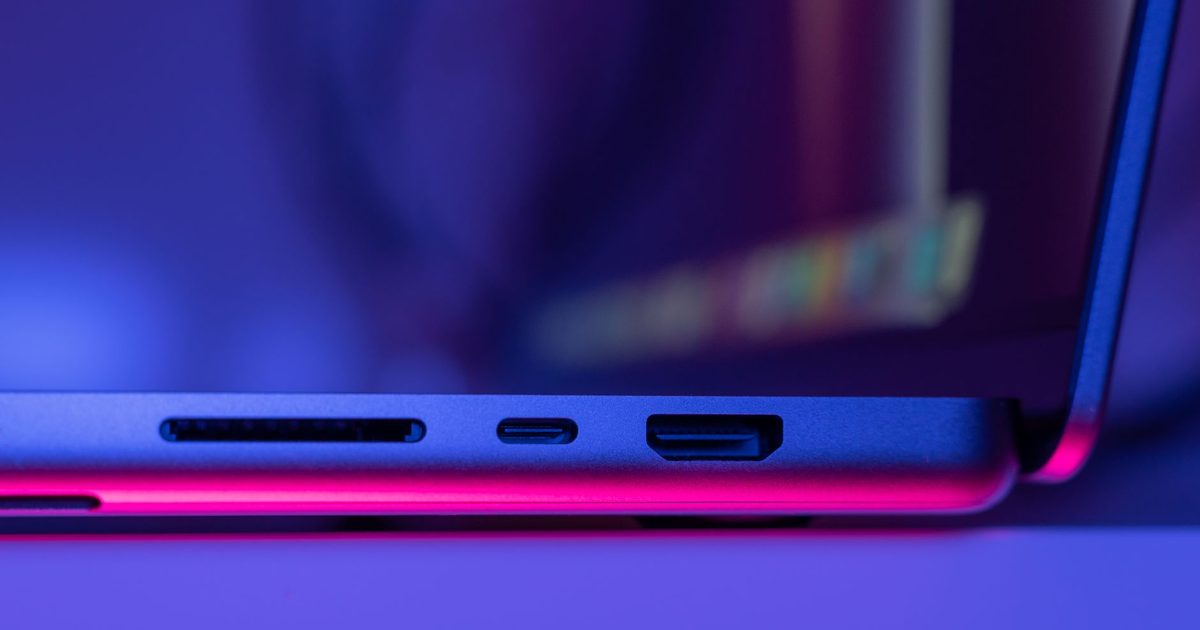
Why the two names look identical
The confusion is built in. USB4 and Thunderbolt 4 use the same USB-C socket and the same cable shape, and both put "40Gbps" on the box, so it's fair to assume they're two words for one thing, or that one is simply the better version of the other. Neither is quite right.
Think of it as a floor and a badge. USB4 is the open standard, looked after by the USB Implementers Forum, and it was built on the Thunderbolt protocol that Intel handed over to the group: the USB Promoter Group's own wording is that USB4 is "based on the Thunderbolt protocol specification recently contributed by Intel Corporation." Thunderbolt 4 is Intel's certification that sits on top of that floor. Intel lists USB4 compliance as one of the things a Thunderbolt 4 port has to pass, so every Thunderbolt 4 device is a USB4 device too. It just has to clear a longer checklist to earn the lightning-bolt badge.
The speed is the same number, and that's the trap
Both top out at 40Gbps, and that shared figure is exactly why people mix them up. The catch is what the number is allowed to mean.
USB4 defines more than one speed. The base standard sets signalling rates of 20Gbps and 40Gbps, and it treats the faster of the two as optional for a laptop or a device. Thunderbolt 4, by Intel's rules, always guarantees the full 40Gbps. So the same "40Gbps" reads differently depending on the badge: on a Thunderbolt 4 port it's a promise, and on a plain USB4 port it's a maybe that you should check on the spec sheet before you count on it.
There's a faster tier coming into view as well. USB4 Version 2.0, published in 2022, and Thunderbolt 5 both lift the ceiling to 80Gbps, but that's a newer and pricier class of laptop and dock, and it isn't what most USB-C ports in use today are running.
What Thunderbolt 4 locks down that USB4 leaves open
This is the part worth understanding, because it's the whole difference. Thunderbolt 4 makes mandatory a set of things that USB4 is allowed to leave out or leave loosely defined.
Screens are the clearest example. Intel requires a Thunderbolt 4 port to drive two 4K displays from one connection through a dock or adapter. USB4 has no matching rule, so how many screens a USB4 port supports, and how sharp they can be, is left to whoever built it.
Fast storage is the next. Thunderbolt 4 raised the minimum PCIe data requirement to 32Gbps, the headroom a fast external SSD needs to run near its full pace. On USB4 that PCIe tunnel is optional, so a cheaper USB4 port may not offer it at all, and an external drive that flies on one machine can crawl on another.
The rest of the Thunderbolt 4 checklist is convenience and safety that USB4 doesn't force: waking your computer from sleep through the dock, VT-d based protection against rogue devices reading your memory, and certified cables that hold the full speed out to two metres. Put simply, a Thunderbolt 4 port is a USB4 port with the optional parts switched on and written into the rules.
How to tell what you've actually got
You can't judge it by looking at the socket, since both wear USB-C. Look for the marks instead. A small lightning-bolt symbol beside a port means Thunderbolt. A plain USB-C port with no bolt may still be USB4, so the reliable way to know is to read your laptop's spec sheet and look for the word "USB4" and a Gbps figure next to it.
It's genuinely common now to own USB4 without a badge announcing it, especially on recent laptops that don't use Intel's Thunderbolt branding. And the cable matters as much as the ports: a cheap unmarked USB-C lead can be charge-only and will quietly throttle data and video even between two 40Gbps ports. Look for a cable that states 40Gbps or carries the Thunderbolt mark.
Buying: match the port to the job, not the badge
For most people the right move is to buy for the job, not the badge. If you want a desk setup you can trust to run two monitors and a fast external drive off a single cable, buy for Thunderbolt 4 and those minimums are promised rather than left to the maker's discretion. Our USB-C docking station guide picks docks on exactly that basis.
If it's the cable you're sorting out, a certified 40Gbps Thunderbolt 4 or USB4 cable carries either standard, so you don't have to match it to a brand. Our Thunderbolt 4 cable guide covers the ones that hold the speed.
And if your needs are simpler, a single screen and day-to-day file transfers, a 40Gbps USB4 port does the same everyday work as Thunderbolt 4 for less money. The standards only really pull apart once you start asking a single port to do several demanding things at once.
FAQ
Q: Is Thunderbolt 4 faster than USB4? A: Not at the headline figure. Both peak at 40Gbps. The difference is that Thunderbolt 4 guarantees that 40Gbps plus a stack of other minimums, while a USB4 port is allowed to run at 20Gbps and skip some of them, so a slow USB4 port and a Thunderbolt 4 port can wear the same number and behave differently.
Q: Will a Thunderbolt 4 dock work on a USB4 laptop, and the other way round? A: Usually yes, because Thunderbolt 4 has to be USB4-compliant, so the two are built to interoperate. What you get is whatever the weaker end supports: plug a Thunderbolt 4 dock into a modest USB4 laptop and you'll get the laptop's abilities, not the dock's full potential.
Q: Do I need a special cable? A: For the full 40Gbps, yes. Use a cable that is certified to 40Gbps, sold either as a USB4 or a Thunderbolt cable. A plain charge-only USB-C cable will make the connection but hold back data speed and display support, which is one of the most common reasons a fast port seems slow.